> ## Documentation Index
> Fetch the complete documentation index at: https://docs.eykdata.com/llms.txt
> Use this file to discover all available pages before exploring further.
# UTM parameter guide
A UTM parameter is a piece of code that you add to the end of a destination URL and is used to track the performance of your marketing activities that drive traffic to your online store. The UTM parameters help the Eyk attribution models identify the traffic source and campaign or email details.
UTM set-up can differ slightly per source. Below we first give the general set-up steps, followed by specific examples and ready to use snippets that you can in each of your channels.
## Combining UTMs
Often existing UTMs are already in place. These existing UTMs can be combined with the Eyk UTMs by joining them together, separated by an `&` symbol.
Example:
```text theme={null}
eyk_source=EXAMPLE_CHANNEL&eyk_id=EXAMPLE_ID&utm_source=EXAMPLE_CHANNEL
```
In this example, the Eyk UTMs (`eyk_source` and `eyk_id`) are combined with the standard `utm_source` parameter. There is nothing complicated to it, just paste them together and make sure each parameter is separated by an `&` symbol !
## Set-up steps per source
### Meta
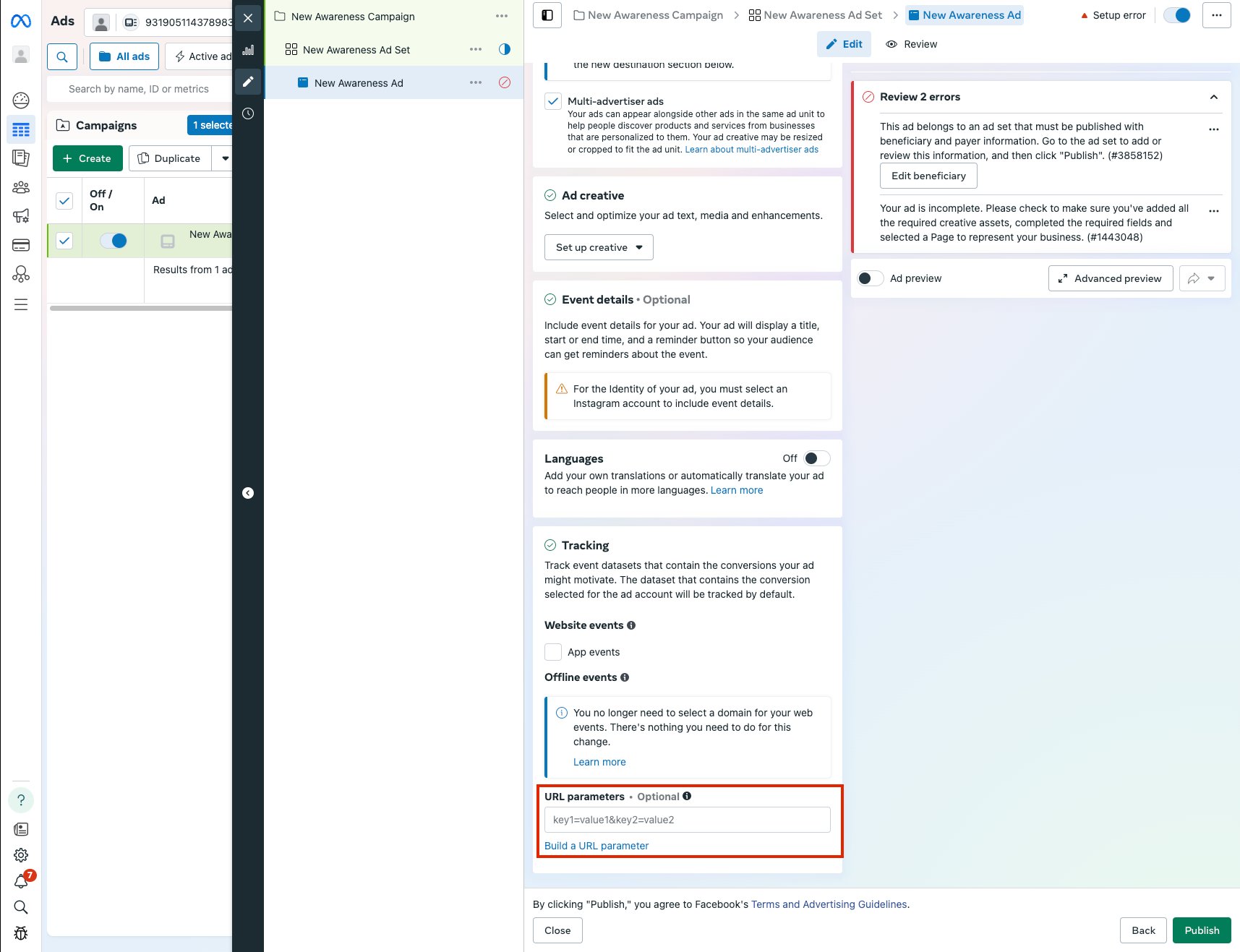
For Meta, go to each of your ads and click the "Edit" button. The following tracking template can be placed in the **URL Parameters** field under the **Tracking** settings of your ads:
```text theme={null}
eyk_source={{site_source_name}}&eyk_campaign={{campaign.id}}&eyk_id={{ad.id}}
```
 ### Google Ads
For Google Ads, first go to **Admin** >> [Account Settings](https://ads.google.com/aw/settings/account) >> **Tracking**, then place the following piece of code in the **Tracking template** field:
```text theme={null}
{lpurl}?eyk_source=google&eyk_campaign={campaignid}&eyk_id={creative}&eyk_gcl_id={gclid}
```
### Google Ads
For Google Ads, first go to **Admin** >> [Account Settings](https://ads.google.com/aw/settings/account) >> **Tracking**, then place the following piece of code in the **Tracking template** field:
```text theme={null}
{lpurl}?eyk_source=google&eyk_campaign={campaignid}&eyk_id={creative}&eyk_gcl_id={gclid}
```
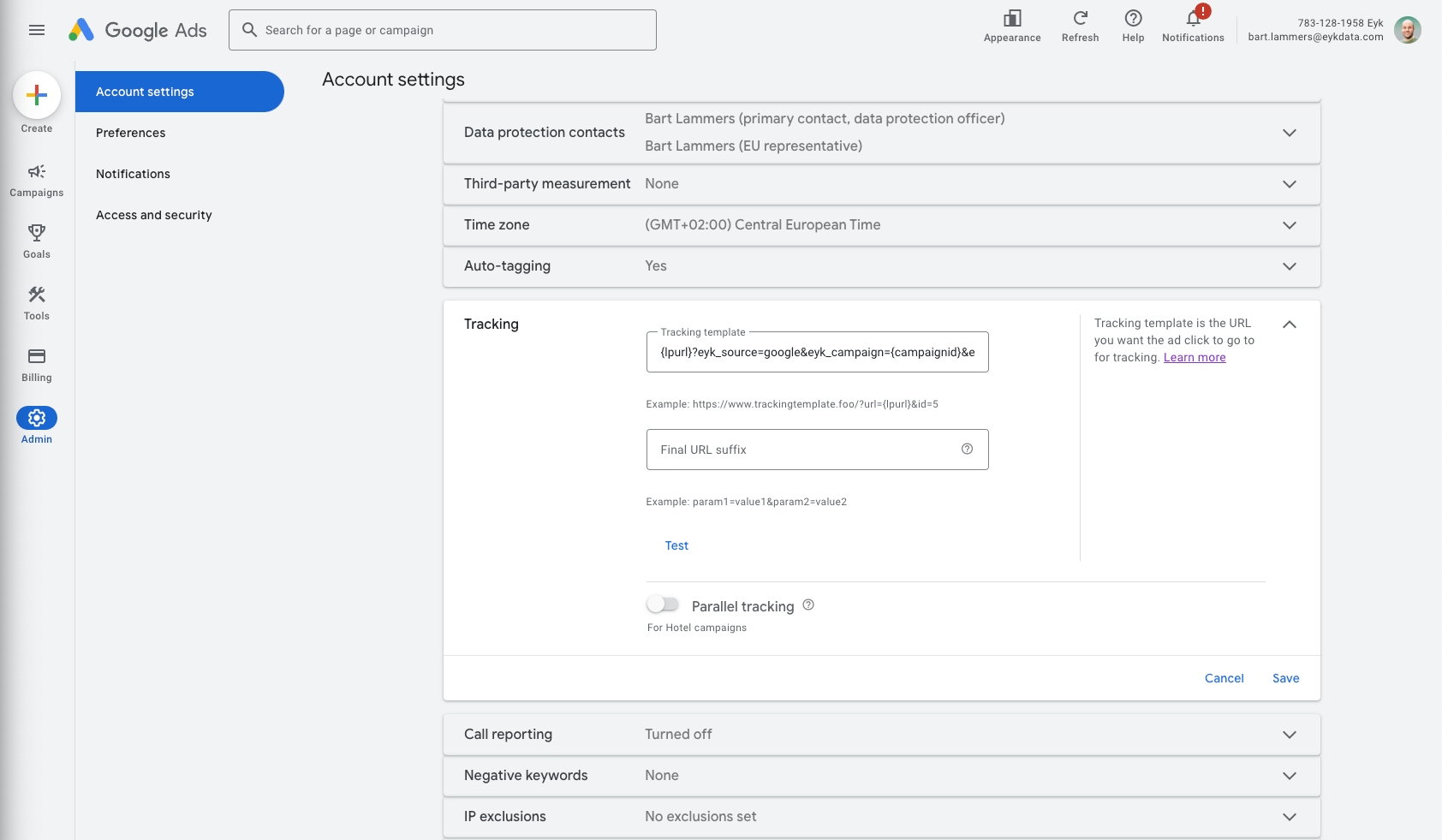 Google Ads allows tracking parameters to be set at both the account, campaign and ad-group levels. An ad-group or campaign-level tracking template will override an account-level template. Ensure existing ad-group and campaign-level tracking templates are updated as needed.
### Microsoft Ads
For Microsoft Ads, first go to **Campaigns** >> **Settings** and click on the tab [Account level options](https://ui.ads.microsoft.com/campaign/vnext/accountsettings). Then place the following piece of code in the **Tracking template** field:
```text theme={null}
{lpurl}?eyk_source=bing&eyk_campaign={CampaignId}&eyk_id={adid}
```
Microsoft Ads allows tracking parameters to be set at both the account and campaign levels. A campaign-level tracking template will override an account-level template. Ensure existing campaign-level tracking templates are updated as needed.
### TikTok Ads
For TikTok the required Eyk tracking parameters will need to be added to **every ad**. Unfortunately TikTok does not provide a way to bulk edit ads.
To add the tracking parameters, for each ad go to **Edit ad** and navigate to the **Destination** section. On the **Destination** section enter the following tracking template in the **URL** field:
```text theme={null}
?eyk_source=tiktok&eyk_campaign=__CAMPAIGN_ID__&eyk_term=__AID__&eyk_id=__CID__
```
### Pinterest Ads
For Pinterest, go to each ad and scroll down to the Destination URL. Then copy the following piece of code and append it to the **Destination URL**:
```text theme={null}
?eyk_source=pinterest&eyk_campaign={campaignid}&eyk_id={adid}
```
As an example, if your existing destination url is `https://example.com/product` then the new destination url with Eyk UTMs will be:
```text theme={null}
https://example.com/product?eyk_source=pinterest&eyk_campaign={campaignid}&eyk_id={adid}
```
Note that this piece of code should be **appended** to the Destination URL. It should not replace it!
### Klaviyo
For Klaviyo, head over to **Settings >> Other** and click on **UTM tracking** and use the button **Add UTM parameter** to add the following parameters:
| UTM parameter | Campaign values | Flow value |
| ------------- | --------------------------- | ----------------------------------- |
| eyk\_source | klaviyo | klaviyo |
| eyk\_campaign | Campaign name (campaign id) | Flow message name (flow message id) |
| eyk\_id | Campaign id | Flow id |
Next, set the toggle **Automatically add UTM parameters to links** to **ON** >> Don't forget to click **Save**
For existing campaigns, make sure the tracking parameters are included by going into **Editing** mode for each campaign. Scroll down to the **Tracking** section and ensure that **Include tracking parameters** is set to **ON**. Make sure **Customize tracking parameters** is turned **OFF**.
Do the same for existing flows: go to each of your Flows and enter **Edit** mode. For each **Email** and **SMS** action in the flow go to **Settings** and make sure **Enable UTM tracking** is set to **ON**.
### Other sources
🤝 Any source missing for which you would like to see specific examples? Don't hesitate to reach out using the in-product chat and we'll help you set-up!
Identifying traffic using Eyk can easily be done by adding the following four UTM parameters to your ad links:
| Parameter name | Dynamic values (availability of these variables is different per channel) | Static values (requires you to manually enter the value per campaign or ad) |
| -------------- | ------------------------------------------------------------------------- | --------------------------------------------------------------------------- |
| eyk\_source= | source name | \<\> |
| eyk\_campaign= | campaign id | \<\> |
| eyk\_id= | ad id | \<\> |
Google Ads allows tracking parameters to be set at both the account, campaign and ad-group levels. An ad-group or campaign-level tracking template will override an account-level template. Ensure existing ad-group and campaign-level tracking templates are updated as needed.
### Microsoft Ads
For Microsoft Ads, first go to **Campaigns** >> **Settings** and click on the tab [Account level options](https://ui.ads.microsoft.com/campaign/vnext/accountsettings). Then place the following piece of code in the **Tracking template** field:
```text theme={null}
{lpurl}?eyk_source=bing&eyk_campaign={CampaignId}&eyk_id={adid}
```
Microsoft Ads allows tracking parameters to be set at both the account and campaign levels. A campaign-level tracking template will override an account-level template. Ensure existing campaign-level tracking templates are updated as needed.
### TikTok Ads
For TikTok the required Eyk tracking parameters will need to be added to **every ad**. Unfortunately TikTok does not provide a way to bulk edit ads.
To add the tracking parameters, for each ad go to **Edit ad** and navigate to the **Destination** section. On the **Destination** section enter the following tracking template in the **URL** field:
```text theme={null}
?eyk_source=tiktok&eyk_campaign=__CAMPAIGN_ID__&eyk_term=__AID__&eyk_id=__CID__
```
### Pinterest Ads
For Pinterest, go to each ad and scroll down to the Destination URL. Then copy the following piece of code and append it to the **Destination URL**:
```text theme={null}
?eyk_source=pinterest&eyk_campaign={campaignid}&eyk_id={adid}
```
As an example, if your existing destination url is `https://example.com/product` then the new destination url with Eyk UTMs will be:
```text theme={null}
https://example.com/product?eyk_source=pinterest&eyk_campaign={campaignid}&eyk_id={adid}
```
Note that this piece of code should be **appended** to the Destination URL. It should not replace it!
### Klaviyo
For Klaviyo, head over to **Settings >> Other** and click on **UTM tracking** and use the button **Add UTM parameter** to add the following parameters:
| UTM parameter | Campaign values | Flow value |
| ------------- | --------------------------- | ----------------------------------- |
| eyk\_source | klaviyo | klaviyo |
| eyk\_campaign | Campaign name (campaign id) | Flow message name (flow message id) |
| eyk\_id | Campaign id | Flow id |
Next, set the toggle **Automatically add UTM parameters to links** to **ON** >> Don't forget to click **Save**
For existing campaigns, make sure the tracking parameters are included by going into **Editing** mode for each campaign. Scroll down to the **Tracking** section and ensure that **Include tracking parameters** is set to **ON**. Make sure **Customize tracking parameters** is turned **OFF**.
Do the same for existing flows: go to each of your Flows and enter **Edit** mode. For each **Email** and **SMS** action in the flow go to **Settings** and make sure **Enable UTM tracking** is set to **ON**.
### Other sources
🤝 Any source missing for which you would like to see specific examples? Don't hesitate to reach out using the in-product chat and we'll help you set-up!
Identifying traffic using Eyk can easily be done by adding the following four UTM parameters to your ad links:
| Parameter name | Dynamic values (availability of these variables is different per channel) | Static values (requires you to manually enter the value per campaign or ad) |
| -------------- | ------------------------------------------------------------------------- | --------------------------------------------------------------------------- |
| eyk\_source= | source name | \<\> |
| eyk\_campaign= | campaign id | \<\> |
| eyk\_id= | ad id | \<\> |