Setup instructions
1
Open Goals
Go to your Google Ads account and click on Goals in the left-side menu.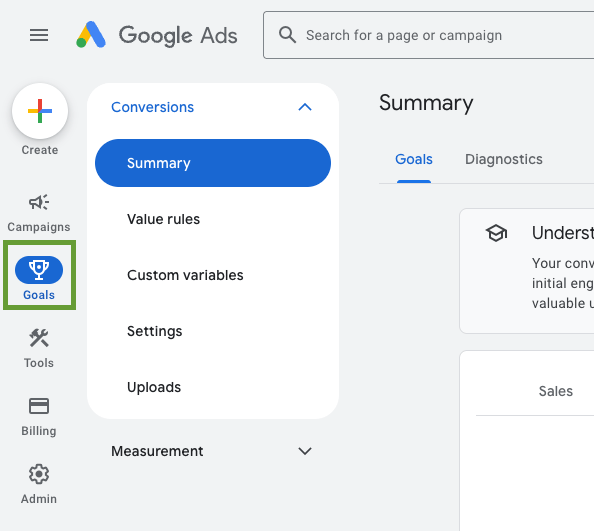
2
Create a conversion action
Scroll down and click on the button + Create conversion action.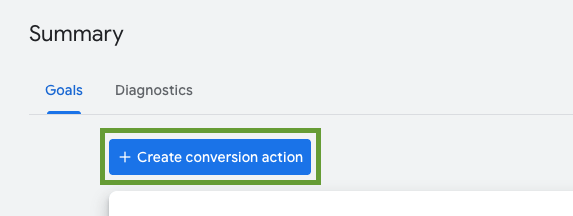
3
Select Website
On the next page, select Website.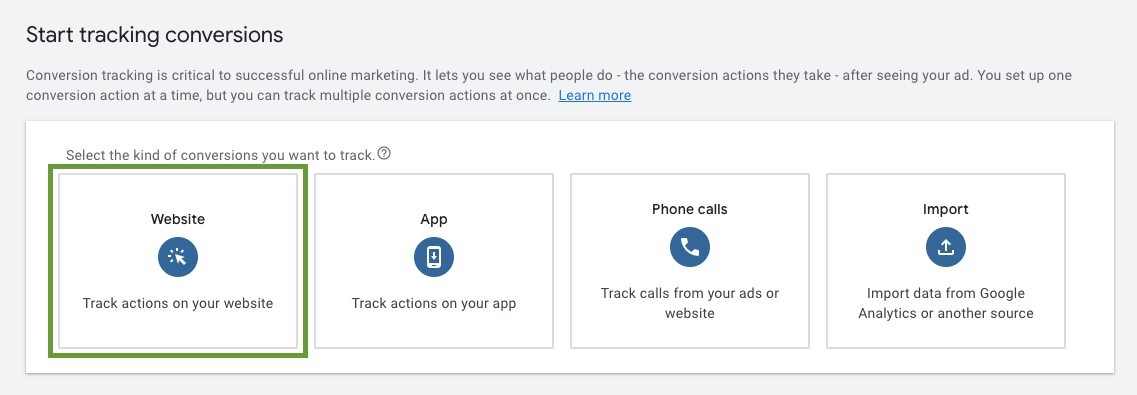
4
Scan your domain
Enter your website domain and click Scan.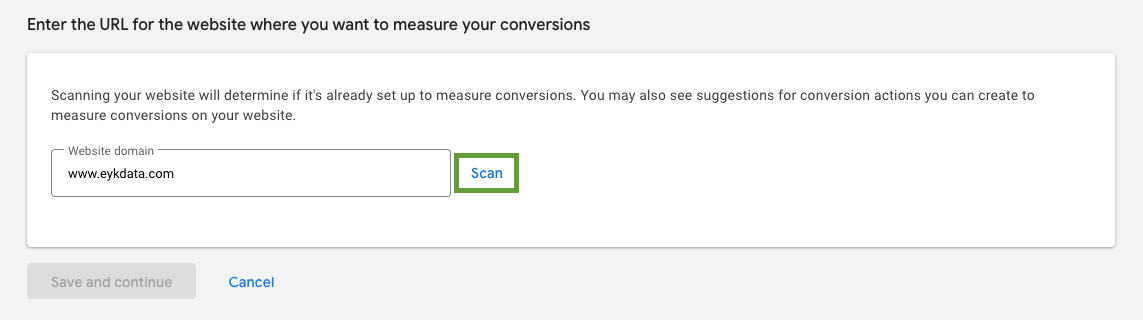
5
Use Google Ads only
In case you see the following note, click Use Google Ads only. If you don’t see this, please skip this step.
6
Add a conversion action manually
Scroll down to the section Create conversion actions manually using code and click + Add a conversion action manually.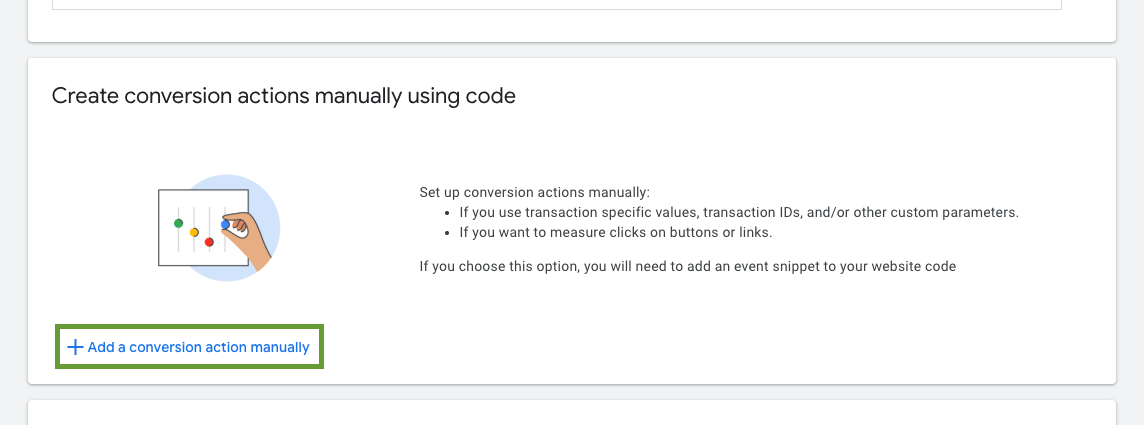
7
Select the Purchase category
On the next page, click on the Select category drop down and select Purchase.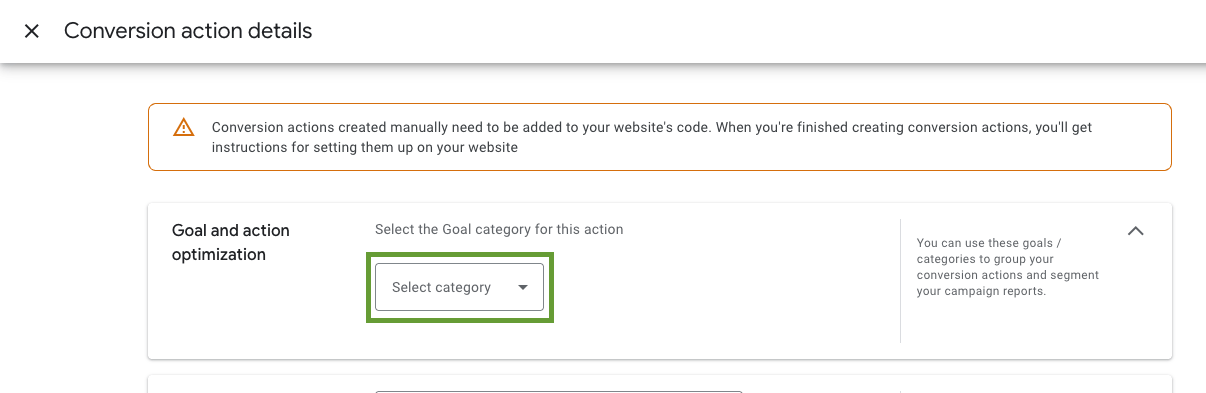
8
Set the action as secondary
Then click on Conversion action optimization options to expand and select Secondary action not used for bidding optimization.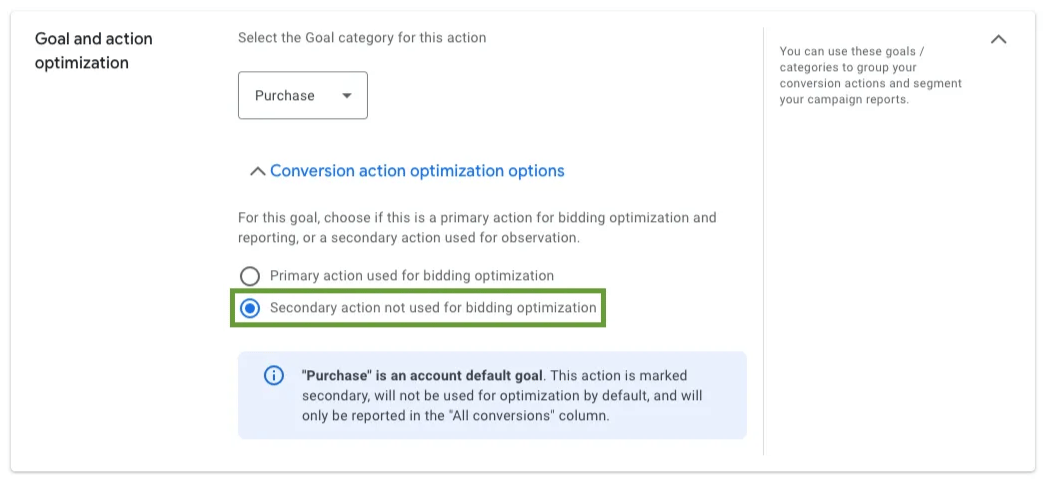
We initially run the conversion actions in secondary mode because conversion actions in Google Ads require a certain volume of data to optimize performance effectively. By keeping your existing conversion action as the primary one and running it alongside Eyk for approximately two weeks, you can ensure a seamless transition.
9
Name the conversion
For Conversion name enter 
Purchase (Eyk).10
Keep default value and count settings
Keep the default settings in the Value and Count section. Under Value, the option Use different values for each conversion should be selected. Under Count, ensure Every is selected.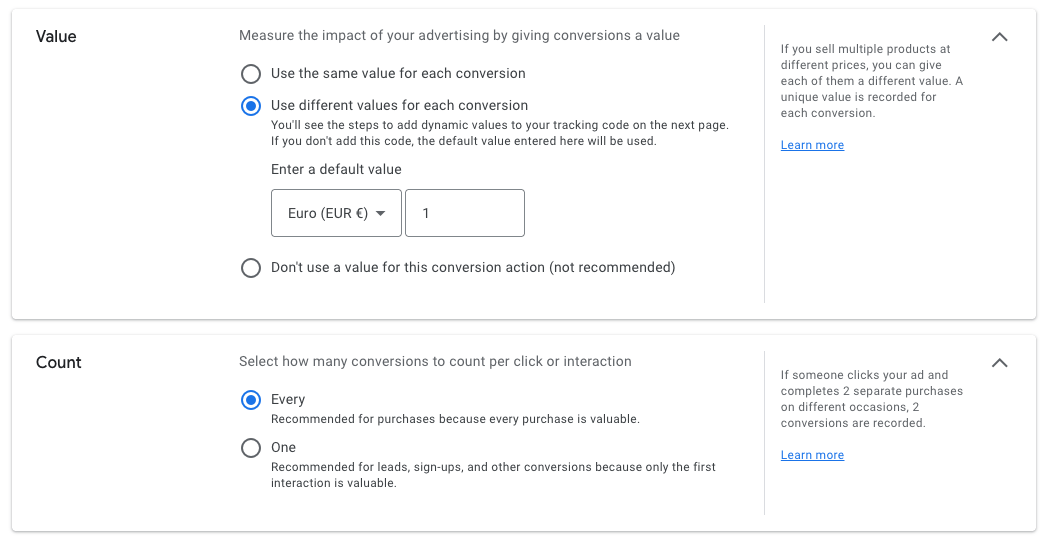
11
Enable enhanced conversions
Under the Enhanced conversions section, ensure Use enhanced conversions for this conversion action is selected. Then click the Done button in the bottom left corner.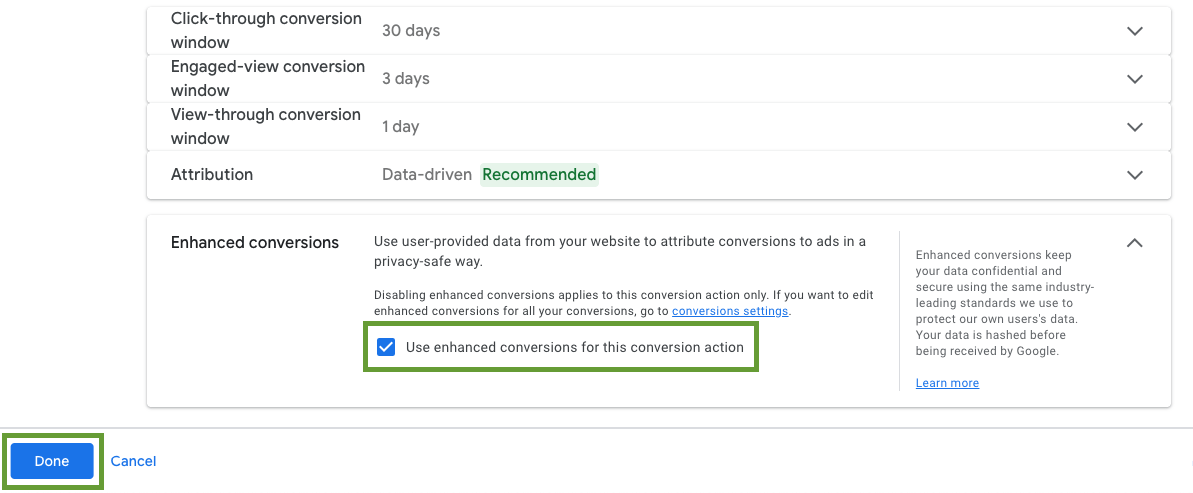
12
Repeat for the other conversion actions
Click + Add a conversion action manually and repeat steps 6 to 10 for goal categories Add to cart and Begin checkout.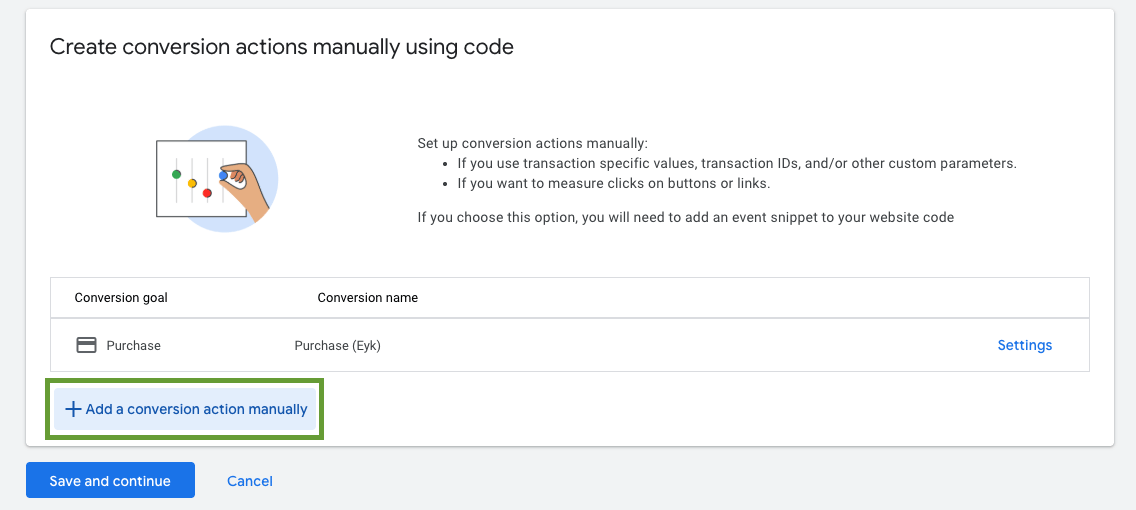
13
Save and continue
When Purchase, Add to cart and Begin checkout are all added, select Save and continue.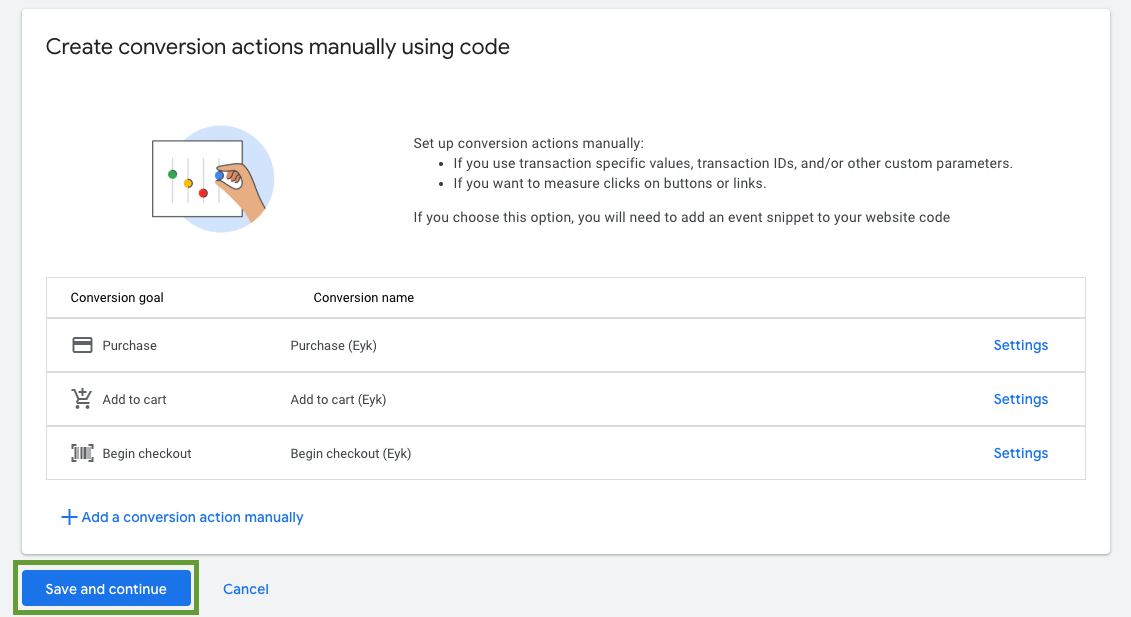
14
Use Google Tag Manager
On the next page, select Use Google Tag Manager.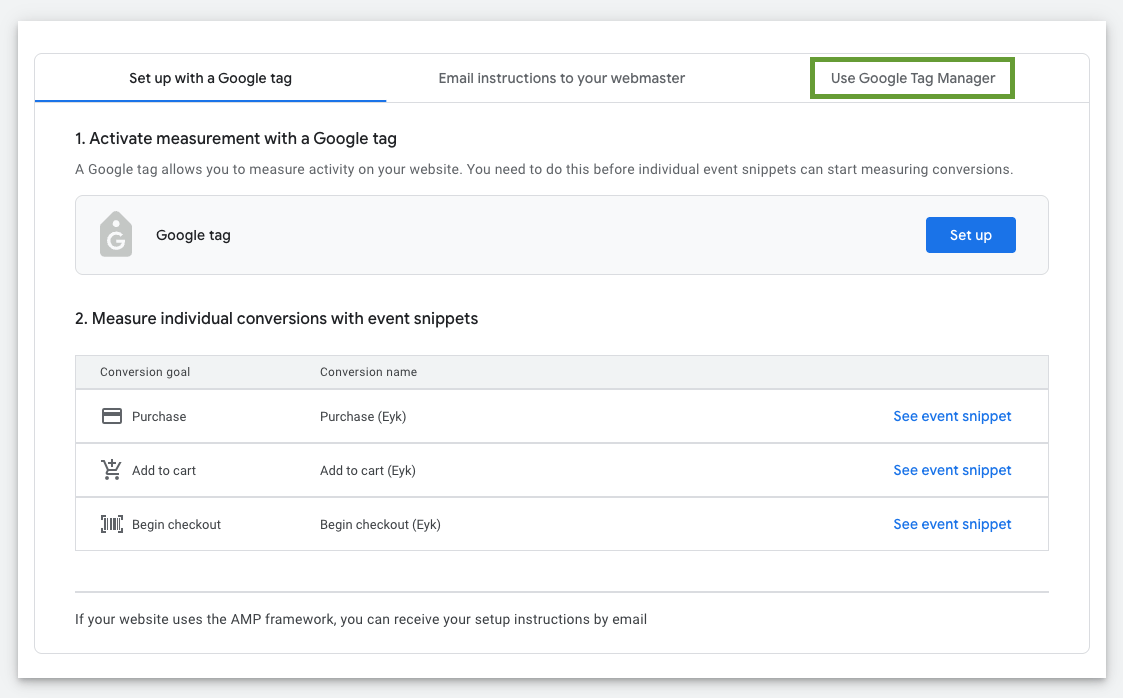
15
Copy the conversion values
Copy the following values — you’ll need them in the next steps: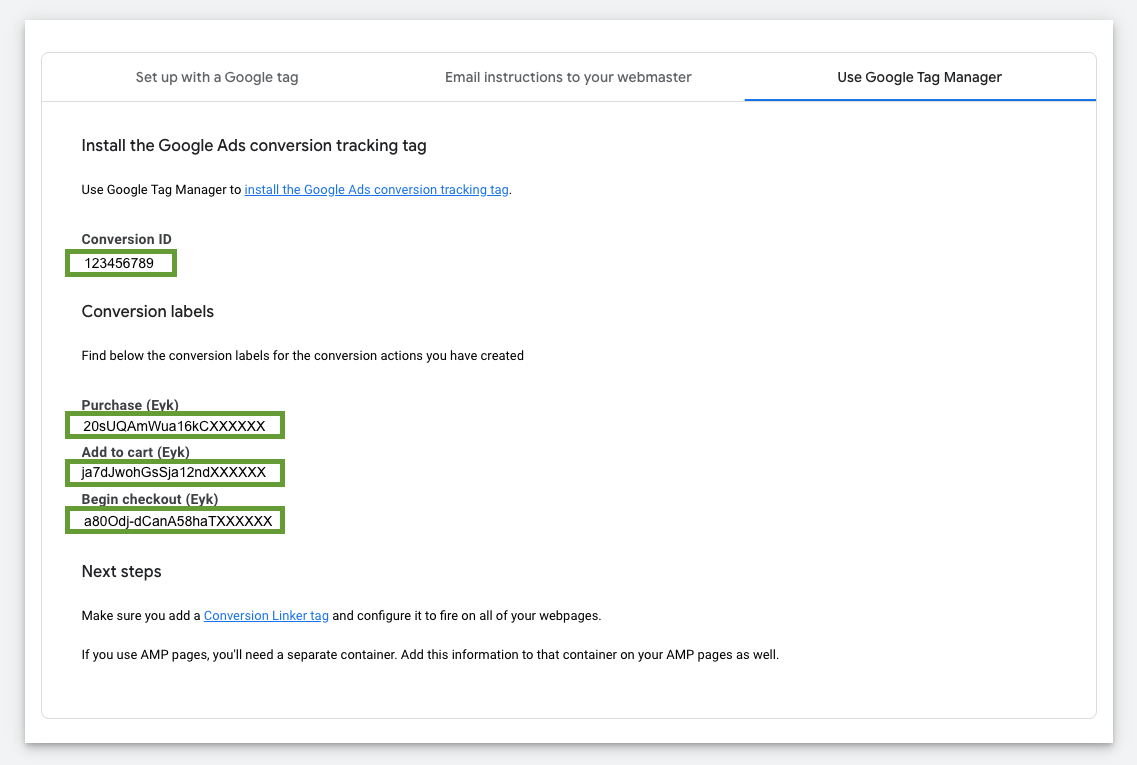
- Conversion ID
- Conversion label: Purchase (Eyk)
- Conversion label: Add to cart (Eyk)
- Conversion label: Begin checkout (Eyk)
16
Finish in Google Ads
Click the Done button.
17
Add the destination in Eyk
In your Eyk environment, go to Tracking and click the + Add destination button.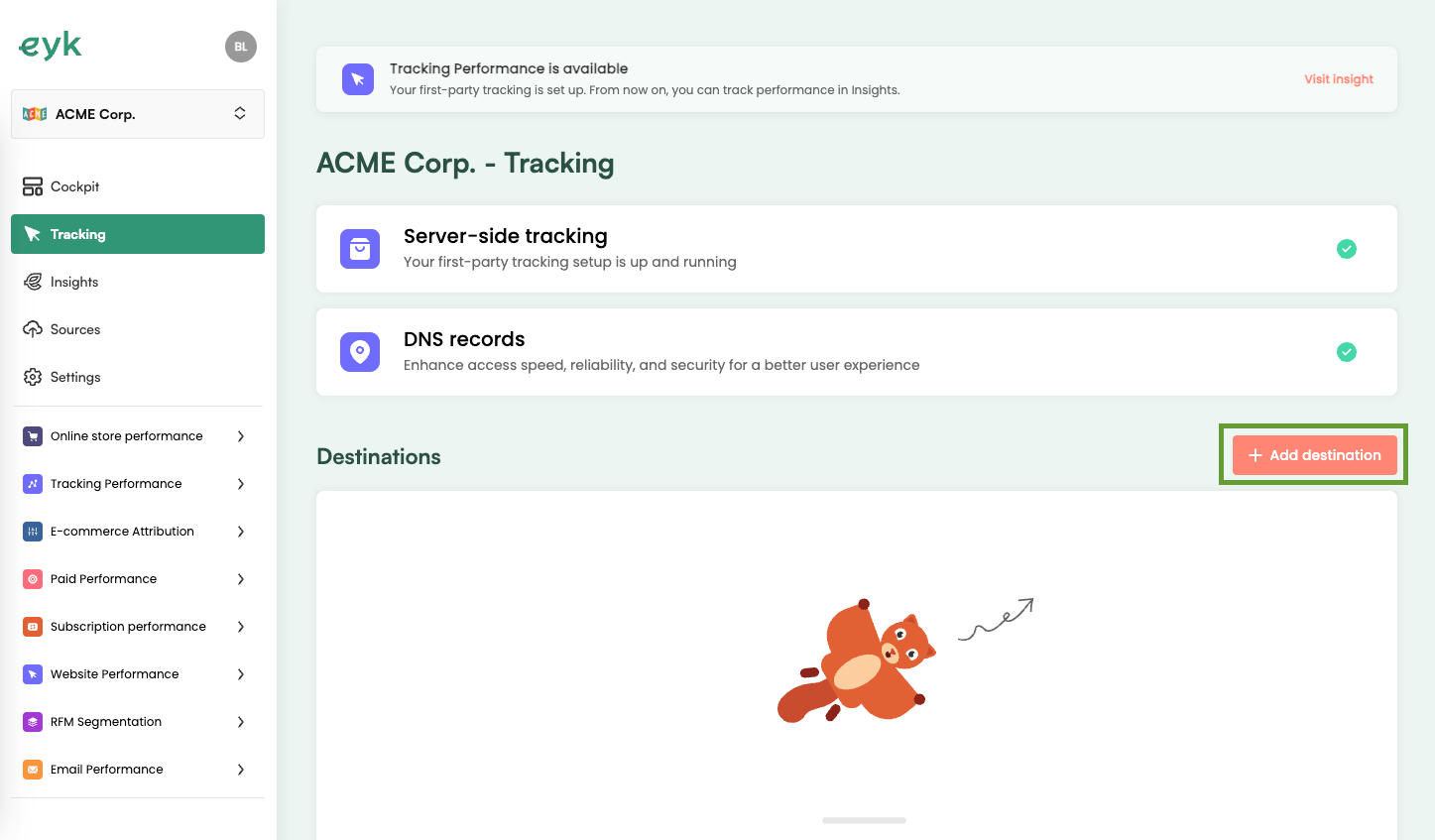
18
Select Google Ads conversion
Select Google Ads conversion from the list of destinations.
19
Start verification
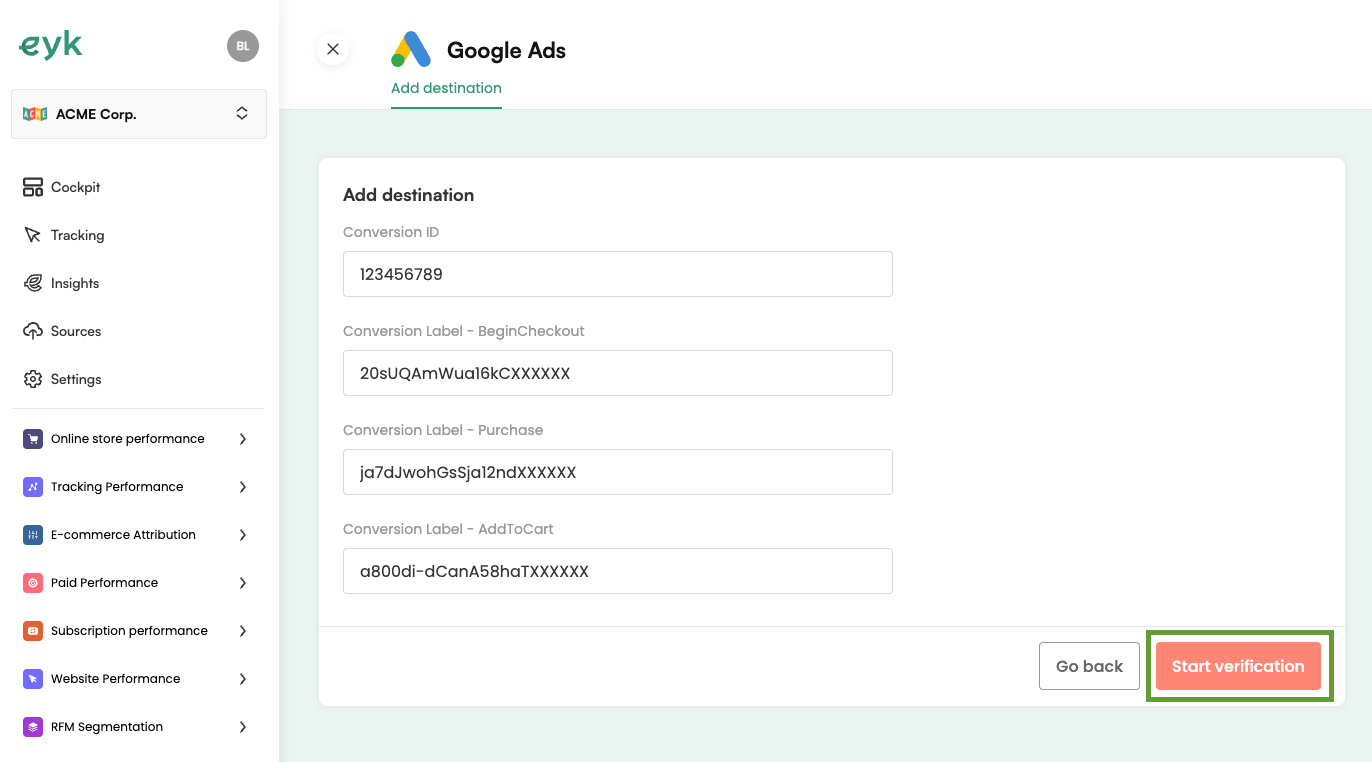
Enter the fields as collected in the previous steps and click Start verification.